

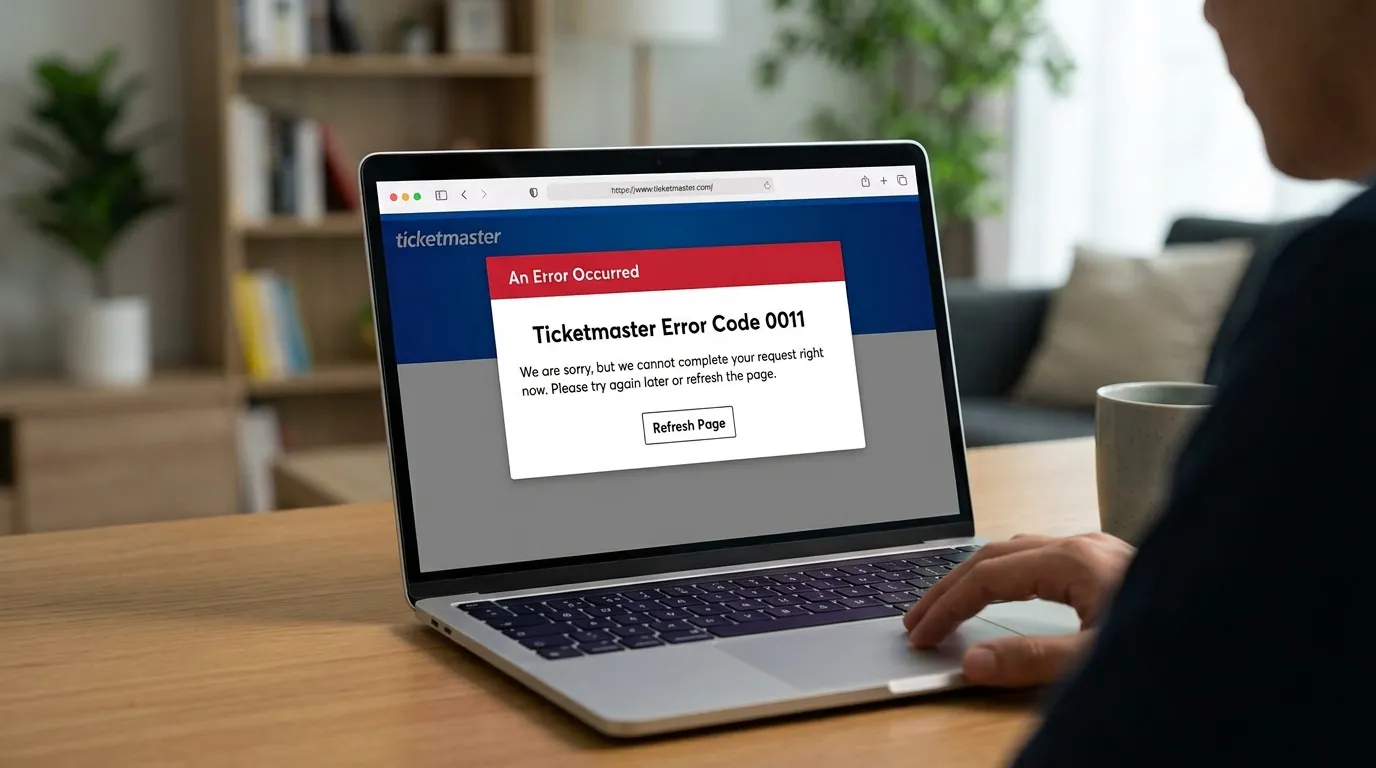
Buying tickets for a popular concert or sports event can become frustrating if you suddenly see Ticketmaster Error Code 0011.
This error usually appears when Ticketmaster’s security system detects activity that looks unusual. In most cases, it does not mean there is a problem with your payment or account.
The good news is that Error Code 0011 is often temporary and can be fixed with a few simple steps. In this guide, you will learn what the error means, why it appears, how to fix it on different devices, and how to avoid seeing it again.
What Is Ticketmaster Error Code 0011?
Ticketmaster Error Code 0011 is a security-related error that appears when the platform detects browsing activity that may look automated or suspicious.
The system uses security checks to reduce ticket scalping, automated bots, and unusual purchase behavior during ticket sales.
This error can appear if you refresh pages too often, use a VPN or proxy, open multiple Ticketmaster tabs, or browse from a shared network.
In most situations, the error is temporary and disappears after you remove the trigger or wait for a short period before trying again.
Why Am I Getting Ticketmaster Error Code 0011?
Several activities can trigger this security check. Identifying the cause helps you choose the right solution.
- Ticketmaster detected browsing activity that looks automated.
- You are connected through a VPN or proxy server.
- Your browser cookies or cache contain outdated session data.
- Multiple Ticketmaster tabs or devices are using the same account.
- You refreshed the queue or ticket page too many times.
- A browser extension is interfering with the website.
- You are using public, office, or university WiFi shared by many users.
- Ticketmaster is experiencing temporary server or traffic issues during a high-demand sale.
Most users resolve the issue by removing one or more of these triggers instead of creating a new account or changing their payment method.
How to Fix Ticketmaster Error Code 0011?
Start with the simplest fixes before trying advanced troubleshooting. Many users solve the problem within a few minutes.
- Close all extra Ticketmaster tabs and keep only one session open.
- Clear your browser cache and cookies, then sign in again.
- Disconnect any VPN or proxy service before reopening Ticketmaster.
- Disable browser extensions, especially ad blockers and privacy tools.
- Open Ticketmaster in Incognito or Private Browsing mode.
- Try another supported browser such as Chrome, Edge, Firefox, or Safari.
- Restart your browser or device to refresh your session.
- Switch to another internet connection, such as mobile data or home WiFi.
- Wait 30 to 60 minutes before trying again if repeated attempts triggered the error.
- Use the official Ticketmaster mobile app if the website continues showing the error.
- Contact Ticketmaster support if the error remains after trying all troubleshooting steps.
These solutions fix most cases because they remove the conditions that trigger Ticketmaster’s security system.
Device Specific Solutions
The steps below cover the most common browsers and mobile devices. Follow the instructions that match the device or browser you are using.
- Chrome: Clear cookies and cache, disable VPN and browser extensions, use Incognito Mode, and update Chrome.
- Firefox: Clear browsing history, cookies, and cache, disable privacy extensions, use a Private Window, and update Firefox.
- Microsoft Edge: Delete cached files and cookies, disable extensions, use InPrivate Mode, and update Edge.
- Safari: Clear website data, disable iCloud Private Relay and VPN if enabled, then restart Safari.
- Android: Force close the Ticketmaster app, clear the app cache, update the app, and switch between WiFi and mobile data.
- iPhone: Update the Ticketmaster app, clear Safari website data, disable VPN or iCloud Private Relay, and restart your device.
If the error still appears after following the steps for your device, wait 30 to 60 minutes before trying again. If the issue continues after several hours, contact Ticketmaster support.
How Long Does Ticketmaster Error Code 0011 Last?
The duration of Error Code 0011 depends on what triggered the security check. In most cases, the block is temporary and clears automatically after suspicious activity stops.
- If repeated page refreshes caused the error, waiting 30 to 60 minutes often helps.
- Errors triggered by a VPN or proxy usually disappear after disconnecting and starting a new browser session.
- During high-demand ticket sales, the error may remain for several hours because of heavy traffic.
- If the error continues for more than 24 hours, there may be another account or technical issue that requires support.
Avoid making repeated purchase attempts while the error is active, as this can extend the temporary restriction.
How to Prevent Ticketmaster Error Code 0011?
A few simple habits can reduce the chances of seeing this error during future ticket purchases.
- Use only one Ticketmaster tab while buying tickets.
- Turn off VPNs and proxy servers before visiting Ticketmaster.
- Keep your browser and Ticketmaster app updated.
- Use a stable home or mobile internet connection.
- Sign in to your account before ticket sales begin.
- Complete your purchase without switching between multiple devices.
Following these practices helps keep your browsing activity consistent and reduces the chance of triggering automated security checks.
Mistakes That Trigger Ticketmaster Error Code 0011
Many users unknowingly trigger the security system through normal browsing habits. Avoiding these common mistakes can save time during busy ticket sales.
- Opening several Ticketmaster tabs at the same time.
- Signing in on multiple devices simultaneously.
- Refreshing pages every few seconds while waiting in the queue.
- Using outdated browser cookies from previous sessions.
- Running multiple browser extensions that modify website traffic.
- Repeatedly attempting checkout after receiving the same error.
Making fewer unnecessary requests helps Ticketmaster recognize your activity as normal.
Can You Still Buy Tickets After Error Code 0011?
Yes, in most cases you can still buy tickets after Error Code 0011 disappears. The error usually blocks the current browsing session instead of permanently restricting your account.
Before trying to purchase again, check your confirmation email and the My Orders section in your Ticketmaster account to confirm whether your previous order was completed.
If no order appears, wait until the temporary restriction ends, then try again using a single browser, one device, and a stable internet connection.
When Should You Contact Ticketmaster Support?
Contact Ticketmaster support if Error Code 0011 continues after you have cleared your browser data, disabled your VPN, switched networks, and waited several hours.
You should also reach out if your payment was processed but you did not receive ticket confirmation, your order is missing from your account, or the error continues for more than 24 hours.
Sharing details about your browser, device, internet connection, and the exact time the error appeared can help support investigate the issue more quickly.
Frequently Asked Questions
Why does Ticketmaster think I’m a bot?
Ticketmaster’s security system may flag activity that looks unusual, such as frequent page refreshes, multiple open tabs, VPN usage, or repeated purchase attempts from the same network.
Is Ticketmaster Error Code 0011 temporary?
Yes. In most cases, Error Code 0011 is temporary and disappears after you remove the trigger or wait for a short period before trying again.
Can clearing cookies fix Error Code 0011?
Yes. Clearing your browser’s cookies and cache removes outdated session data, which often resolves the error if it is related to your browser.
Can Ticketmaster support remove Error Code 0011?
Support can help investigate account or order issues, but temporary security restrictions usually clear automatically after suspicious activity stops.
Final Thoughts
Ticketmaster Error Code 0011 is usually a temporary security measure rather than a problem with your account or payment. It often appears when the system detects browsing activity that looks unusual, such as using a VPN, opening multiple tabs, or refreshing pages too often.
Most users fix the error by clearing browser data, disabling VPNs, using one browser session, or waiting for the temporary restriction to expire. If the error continues after trying these steps or affects a completed payment, contacting Ticketmaster support is the next step.
Also Read: What Are the Features of LogicalShout News?
