
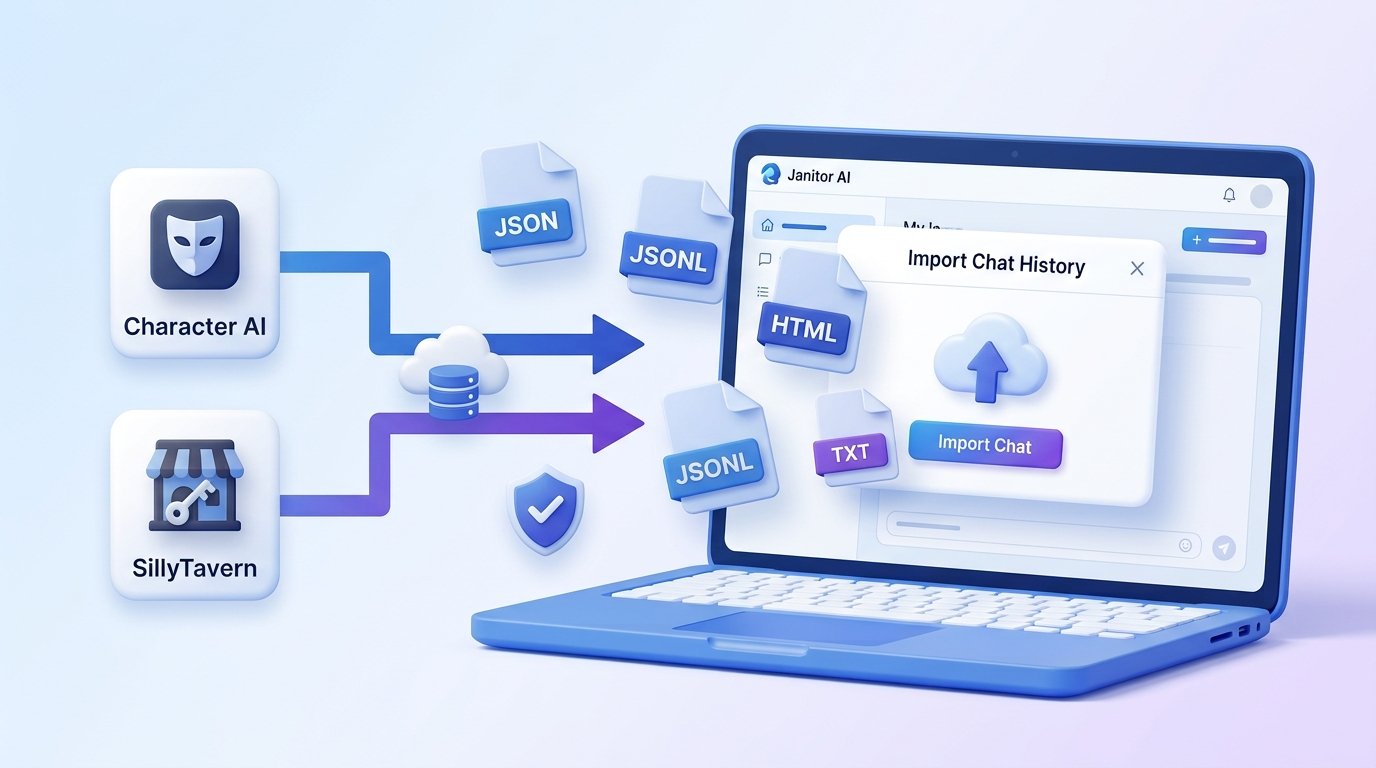
If you want to continue an old conversation instead of starting from scratch, importing chat history into Janitor AI can save time.
Whether your chat comes from Character AI, SillyTavern, a JSON file, or an HTML export, the method depends on the file format and the tools you use.
While Janitor AI lets signed in users save conversations and characters remember previous chats, there is no built in feature that supports every chat format. This guide explains the available methods and the limits you should know before importing your conversations.
Can You Import Chats into Janitor AI?
Yes, you can import chats into Janitor AI in some situations, but the process depends on the source of your conversation. At the moment, there is no universal import feature that accepts every chat format directly inside Janitor AI.
If your conversation comes from another AI platform, you may need a compatible browser extension, a supported chat file, or a manual transfer. For unsupported formats, copying the conversation into a new chat is still the most reliable option.
Before importing any conversation, make sure you have:
- A Janitor AI account if you want to save chat history.
- A compatible chat file such as JSON, JSONL, TXT, or HTML when supported.
- The correct character ready for the imported conversation.
- A backup of your original chat in case something goes wrong.
Steps To Import Chat in Janitor AI
The import process changes depending on the chat source, but the overall workflow stays similar.
- Sign in to your Janitor AI account.
- Open or create the character you want to use.
- Prepare your exported chat file.
- Use a compatible import tool or browser extension if required.
- Upload or transfer the conversation.
- Check that messages appear in the correct order.
- Continue chatting from the imported conversation.
- Keep the original backup until you confirm everything works correctly.
After the import finishes, read through a few messages before continuing the conversation. This helps you confirm that the context and formatting remain accurate.
How to Import Character AI Chats into Janitor AI?
Many users move roleplay conversations from Character AI to Janitor AI. The easiest method depends on the export format you already have.
- Export your Character AI conversation.
- Save the conversation in a supported format such as HTML or another compatible export.
- Use a compatible browser extension if the chat requires conversion.
- Open the target character in Janitor AI.
- Import or transfer the converted conversation if your tool supports it.
- Check usernames, message order, and formatting.
- Continue the conversation after confirming everything imported correctly.
If your export tool cannot create a compatible file, copying the conversation manually is often the simplest solution.
How to Import SillyTavern Chats into Janitor AI?
SillyTavern usually stores conversations in JSONL format, making it one of the easier chat formats to work with.
- Export the conversation from SillyTavern.
- Save the JSONL file safely before making changes.
- Convert the file only if your import tool requires another format.
- Open the matching character in Janitor AI.
- Import the conversation through the supported tool.
- Review the conversation for missing or misplaced messages.
- Resume chatting after confirming the context looks correct.
Always keep the original JSONL file untouched so you can repeat the process if needed.
How to Import JSON Chat Files?
JSON files are commonly used for chat backups, but their structure can vary between platforms.
- Export or download the JSON file.
- Confirm that the file is complete and not corrupted.
- Avoid editing the file manually unless you understand its structure.
- Use a compatible import tool that accepts JSON files.
- Upload the file.
- Verify that the conversation appears correctly.
- Save the imported conversation if everything works.
If the JSON format does not match the expected structure, the import may fail or display incomplete messages.
How to Import HTML Chat Files?
HTML exports are often created by browser tools and chat export extensions.
- Export the conversation as an HTML file.
- Check that the file opens correctly in your browser.
- Use a compatible conversion or import tool if needed.
- Import the HTML conversation into Janitor AI when supported.
- Review the imported messages carefully.
- Correct any formatting issues before continuing the chat.
HTML files are useful for preserving readable conversations, but some tools may require conversion before importing.
How to Move Chats Manually?
Manual transfer works with almost every platform and does not depend on file compatibility.
- Open the original conversation.
- Create a new chat in Janitor AI.
- Copy messages in their original order.
- Keep speaker names consistent.
- Paste the conversation in smaller sections if needed.
- Read through the transferred messages for accuracy.
- Continue the conversation naturally.
This method takes more time, but it avoids file compatibility issues and works even when automatic import is unavailable.
Common Chat Import Problems and Fixes
Import problems usually happen because of incompatible files or formatting issues. Most of them are easy to solve.
- Import option missing: Update or reinstall the compatible extension.
- Invalid JSON file: Export the conversation again without editing the file.
- Corrupted file: Use the original backup instead of the modified version.
- Messages appear out of order: Repeat the export process and verify timestamps.
- Character context looks incorrect: Import the chat into the correct character.
- Upload fails: Check whether the file format is supported by the tool you are using.
- Missing messages: Export the conversation again and compare it with the original file.
If an error continues after several attempts, try importing a smaller conversation first to identify whether the issue is related to the file size or the file format.
Is Importing Chats Safe?
Importing chats is generally safe when you use trusted tools and keep your conversation files private.
Janitor AI encrypts conversations, and character creators cannot view private chats. Creating an account also lets you save your conversations for future use. If you decide to stop using the service, you can delete your account and its associated data.
For better security, keep these practices in mind:
- Download export tools from trusted sources.
- Avoid uploading sensitive personal information.
- Keep backup copies of important conversations.
- Store exported files in a secure location.
- Delete unnecessary chat files after a successful import.
Following these steps helps protect your conversation history while reducing the chance of losing important chats.
FAQs
Can I import Character AI chats into Janitor AI?
Yes. You can transfer Character AI conversations by using a compatible export format, browser tool, or manual copy method.
Does Janitor AI support JSON chat imports?
JSON imports may work through compatible tools, but success depends on the file structure and format.
Can I import HTML chat files?
Yes. HTML files can be imported when supported by the tool you are using or after converting them into a compatible format.
Can I move chats manually?
Yes. Copying messages into a new Janitor AI conversation works with almost any platform.
Will importing chats affect conversation memory?
Once the conversation is available in Janitor AI, future responses can build on that chat history within the conversation.
Can I restore deleted chats by importing them?
Yes, if you have an exported backup. Without a backup, deleted conversations usually cannot be restored.
Is importing chats private?
Yes. Your conversations remain private, and character creators cannot read your chats.
What should I do if the import fails?
Check the file format, verify the export is complete, and try importing the original backup instead of an edited file.
Conclusion
Importing chats into Janitor AI is possible, but the method depends on where the conversation comes from and the file format you have. Character AI, SillyTavern, JSON, HTML, and manual transfers each require a slightly different approach.
Before importing, keep a backup of the original conversation and check that your files are compatible. Once the chat appears correctly, you can continue your conversation without losing important context.
Also Read: How To Enhance Sora AI Video Quality?
